Whether you’re a web developer, graphic designer, blogger, or social media manager, dealing with images in the wrong format or size is a daily frustration. Too large? Your website slows down. Wrong format? It won’t upload. Too low quality? It looks terrible on screen.
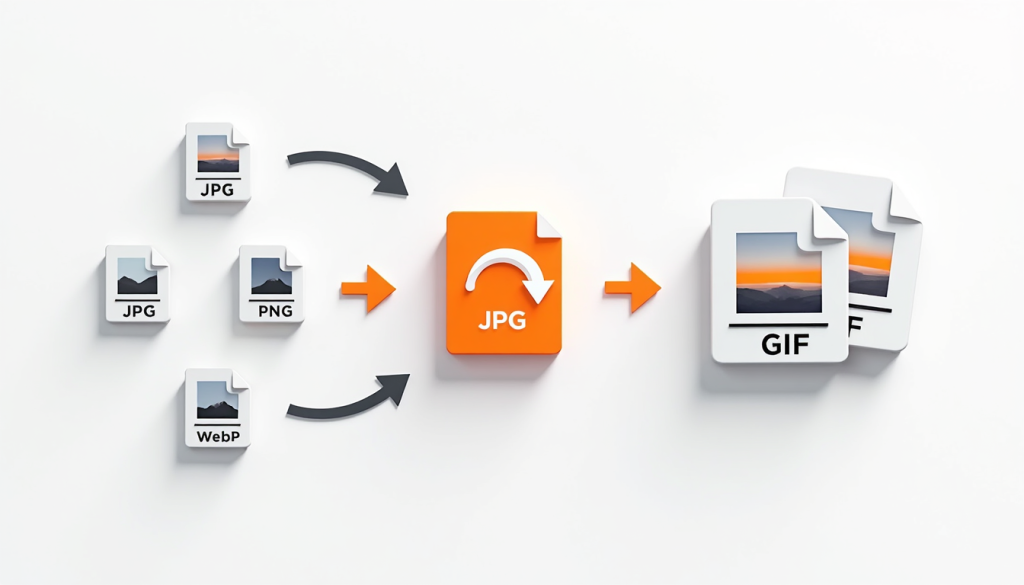
The solution is simple — a free online Image Converter that lets you convert, compress, and optimize images instantly, right in your browser.
In this guide, we’ll cover everything you need to know about image formats, why optimization matters, and how to handle all your image conversion needs for free with it3.
Why Image Format Matters
Not all image formats are created equal. Each format has its own strengths, weaknesses, and ideal use cases. Using the wrong format can mean bloated file sizes, poor quality, or compatibility issues across browsers and devices.
Here’s a quick breakdown of the most common image formats:
| Format | Best For | Supports Transparency | File Size |
|---|---|---|---|
| JPG/JPEG | Photos, social media | No | Small |
| PNG | Graphics, logos, icons | Yes | Medium–Large |
| WebP | Web images (modern browsers) | Yes | Very Small |
| GIF | Simple animations | Yes (limited) | Medium |
| SVG | Vector graphics, logos | Yes | Very Small |
| AVIF | Next-gen web images | Yes | Smallest |
| BMP | Raw uncompressed images | No | Very Large |
| TIFF | Print, professional photography | Yes | Very Large |
Top Reasons to Convert Image Formats
1. Website Speed Optimization
Images are the #1 cause of slow websites. Converting JPGs and PNGs to WebP or AVIF format can reduce image file size by 25–80% without any visible quality loss — dramatically improving your page load speed and Google Core Web Vitals scores.
2. Social Media Compatibility
Different platforms have different image format requirements. Instagram prefers JPG, some platforms don’t support WebP, and others require PNG for transparency. A quick conversion ensures your images upload correctly every time.
3. Professional Print Requirements
Print materials require high-resolution TIFF or PNG files. If you only have a JPG, converting it to the correct format before sending to a printer avoids quality issues.
4. Email Attachments
Large PNG files can be too big to send via email. Converting to JPG and compressing the image makes it email-friendly without sacrificing visible quality.
5. Removing Backgrounds
PNG and WebP formats support transparent backgrounds — essential for logos, product images, and design elements. Converting from JPG to PNG preserves transparency layers properly.
What Is Image Compression?
Image compression reduces the file size of an image by removing unnecessary data — either without visible quality loss (lossless compression) or with a slight, often imperceptible quality reduction (lossy compression).
- Lossless compression (used for PNG, GIF, WebP lossless) — perfect for logos, icons, and images where quality cannot be compromised
- Lossy compression (used for JPG, WebP lossy) — ideal for photographs where a small quality trade-off is acceptable in exchange for much smaller file sizes
How Slow Images Hurt Your Website
Did you know that a 1-second delay in page load time can reduce conversions by up to 7%? Google also uses page speed as a ranking factor — meaning large, unoptimized images can directly hurt your SEO.
Key stats to keep in mind:
- Images account for over 50% of average webpage weight
- Pages that load in under 2 seconds have the highest conversion rates
- WebP images are on average 30% smaller than equivalent JPGs at the same quality
Converting and compressing your images before uploading them to your website is one of the highest-impact, lowest-effort optimizations you can make.
How to Convert and Compress Images for Free With it3
it3’s Image Converter tool makes the entire process effortless:
- Upload your image (JPG, PNG, WebP, GIF, BMP, TIFF, and more)
- Select your desired output format
- Adjust quality and compression settings if needed
- Click Convert and download your optimized image instantly
No software to install, no account required, no watermarks — just fast, free image conversion directly in your browser.
Batch Image Conversion
Converting images one by one is time-consuming. With it3’s tool, you can convert multiple images at once — saving hours when working on a full website redesign, product catalog, or photo gallery.
Best Image Format for Each Use Case
- Website hero images and photos → WebP or AVIF (smallest size, best quality)
- Logos and icons → SVG (scalable, tiny file size) or PNG (transparent background)
- Product images for e-commerce → WebP with fallback JPG
- Social media posts → JPG (widely supported, small size)
- Print materials → TIFF or high-resolution PNG
- Email newsletters → JPG (universal compatibility, small size)
- Animations → GIF (simple) or WebP (modern, smaller size)
Pro Tips for Image Optimization
- Always convert to WebP for web use — it’s supported by all modern browsers and offers the best size-to-quality ratio
- Keep original files — always save a backup of your original high-resolution image before compressing
- Use descriptive file names — rename images to something like “free-url-shortener-tool.webp” instead of “IMG_4821.jpg” for better SEO
- Add alt text — image file name and alt text both contribute to your page’s SEO
- Lazy load images — combine optimized images with lazy loading for maximum website performance
Conclusion
Image conversion and compression is not just a technical task — it directly impacts your website speed, SEO rankings, user experience, and even conversion rates. With a free, browser-based tool like it3’s Image Converter, there’s no reason to upload bloated, wrong-format images ever again.
Optimize your images now: Free Image Converter →